On this page
Use these instructions for service queues. Order collection uses its own tickets, QR code and reports.
Sign in with your own account and confirm you're on the right venue and queue. If you manage multiple venues, start from My venues.
Open a customer’s details
- Open Walk-in dashboard and check the selected venue and queue. Find the customer in Live Queue.
- On desktop, click the customer’s row or ticket number. On mobile, tap their card labelled View details and actions →.
- The Customer Details panel opens. Check the name (or Guest), ticket number, current status and joined time before choosing an action. Called tickets also show how long ago they were called.
- Scroll inside the panel if needed to reach Actions. Close it with the × at the top, or press Escape on a keyboard. Closing the panel does not remove the customer from the queue.
See where to open Customer Details
Find the customer in Live Queue
Click a customer's name (or ticket number) to open their details.
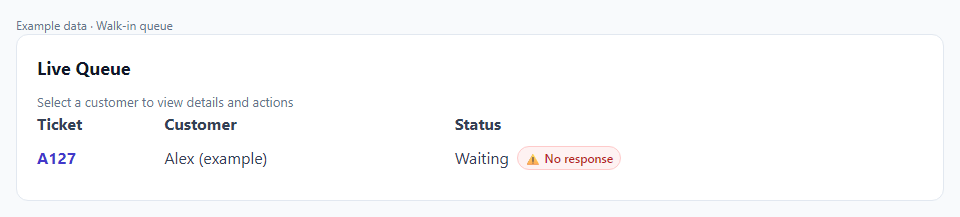
Desktop Live Queue example: click Alex’s row or ticket A127 to open Customer Details.
Example: Ticket A127. The available actions change depending on the ticket's current status.Choose the right customer action
Actions change with the ticket’s state. Some disappear or become unavailable until that action is appropriate. The following controls belong to walk-in queues; collection tickets use their own row actions.
| Control | When to use it |
|---|---|
| Edit, Save and Cancel | Correct the displayed customer name or phone number. Choose Edit, make the correction and Save. Cancel abandons the edit. This does not change the ticket number. |
| Call Customer | Call this specific Waiting ticket for service. It updates the ticket; it does not dial the phone number. |
| Start Service | Use when you start serving the customer. |
| Complete Service | Use when service finishes. It replaces Start Service after service has begun. |
| Uncall Customer | Reverse a mistaken call and return a Called ticket to Waiting. This also resets the service timer. An alert already received cannot be recalled; speak to the customer if needed. |
| No Show | Record that a Called customer missed their turn after checking the ticket and their response. A missing response alone does not prove a no-show. |
| Move Up and Move Down | Adjust a Waiting ticket’s position in its queue. These controls are unavailable for tickets that are no longer Waiting. |
| Resend Notification | Shown for a Waiting ticket with a recorded missing response to the next alert. Retry that alert when appropriate. |
| Phone Customer | Shown only when a phone number exists. Tapping this opens your phone's dialler. On desktop, it opens your default calling app. |
| Remove | Remove this ticket from the active queue without recording completed service. Check the customer and ticket carefully before using it. |
That can be normal. The panel can continue to display Called while service is underway. Look for Complete Service in place of Start Service, and use it when you finish. Do not select Uncall Customer for a service that has genuinely begun.
See Customer Details and its actions
Match the action to the ticket
Compare the panel before calling, after calling, during service and while editing customer details.
Customer Details
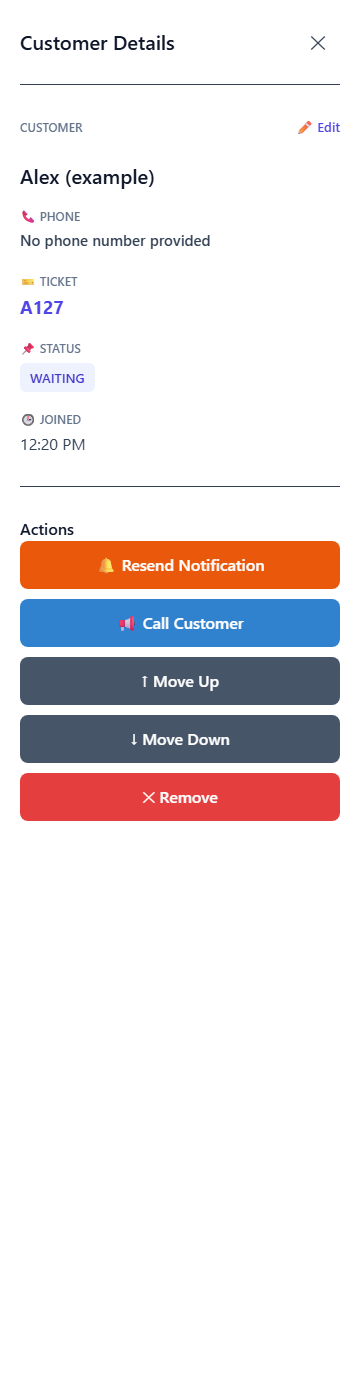
Waiting ticket A127 has Call Customer, Move Up, Move Down and Remove. This example also has Resend Notification because a missing response was recorded.
Example: Ticket A127. The available actions change depending on the ticket's current status.Serve a customer from arrival to completion
- Check the queue’s joining status and live tickets.
- Use Manual check-in for a customer who needs assistance. Enter the requested details and check the new ticket is in the intended queue.
- Use Call Next when available, or open a waiting customer’s details and choose Call Customer.
- Watch for the customer’s I’m coming response where shown. A missing response needs staff attention; it is not an automatic no-show decision.
- Select the correct ticket and choose Start Service when you begin serving them.
- Choose Complete Service when it finishes. Recording both accurately supports service-time learning.
Open the individual customer’s details and check their identity and state before acting. Quick Actions is a shortcut; always confirm the ticket you are updating.
Alerts and automatic calling
“You’re next” prepares the first waiting customer and asks for a response. Calling summons a ticket for service. When automatic calling is enabled, the first customer in the queue can be called immediately when joining and completion can call the next waiting ticket. Pausing service stops automatic calling.
Notifications depend on customer permission and browser/device support. Phone Customer, when a number exists, opens your device’s telephone handling; Call Next does not dial the customer.
When a customer misses their turn
- They didn't show up. Use No Show.
- You called them by mistake. Use Uncall Customer to put them back in the queue.
- They came back later and ask to rejoin. Open Queue History, find their entry, and use Requeue. They go to the end of the line — their old spot isn't restored.
Pause service or stop new joins
| What you need | Dashboard action |
|---|---|
| A service break | Use Pause Service and pick how long the break is. Resume Now ends it early. Pausing service stops automatic calling; it does not itself stop new joins. |
| Stop new admissions | Use Close to Joins. This blocks new joins, including venue QR joins. Reopen Joins opens joining again. A full or disabled queue, closed hours, or incomplete venue activation can still block joining. |
| Persistent queue availability | Owners/managers use Queue enabled in Queue Settings. This is distinct from a temporary pause. |
| Status you see | What it means |
|---|---|
| Service paused · Still accepting joins | Customers can still join. You're just on a break. |
| Service paused · Closed to joins | No new customers can join. QR codes won't work either. |
| Service paused · Joining by venue QR only | Remote joining is off. Customers can still join by scanning the QR at the door. |
Update service time or staffing
Open Service time & staff. Set how long each customer takes (in minutes) and how many people are serving, then save. Staff can use this shortcut without going into full settings. Values remain until changed again; they do not reset daily and do not add time to an individual ticket.