On this page
Use these instructions for service queues. Order collection uses its own tickets, QR code and reports.
Audience: Customers joining a participating business.
Join and follow your ticket
- Find the business. Search by business name, suburb or city. If you are already there, scan its QueueFinder QR code with your phone.
- Check the venue and service. Choose the queue you need. A venue QR can show several choices; a queue QR opens a particular queue.
- Check if you can join. Some queues let you join from anywhere. Others only let you join by scanning the QR code at the door. If the queue is full or closed, you won't be able to join.
- Enter the requested details. Some queues require a name or phone number; others do not. Choose the Join button for the selected queue.
- Keep your ticket handy. Stay in the same browser tab while you wait. If you close it, you can come back and your ticket will still be there.
- Turn on alerts. Choose "Enable Notifications" and allow the browser's request. That's it — you'll get a ping when it's your turn.
Alerts use browser notifications. If you don’t get a ping, check your phone’s notification settings or look for your number at the venue.
- Come back when asked. When your ticket says "You're next," tap "I'm coming" and head back.
- Leave if you no longer need the place. Choose Leave queue and follow any confirmation shown. This gives up the ticket's active place.
One ticket at a time. If you already have a ticket for a queue, open it and leave that queue before joining a new one.
Need help without a phone? Ask staff about manual check-in.
See customer ticket examples
Follow your turn from your phone
Follow demo ticket A127 through the different stages of a queue visit.
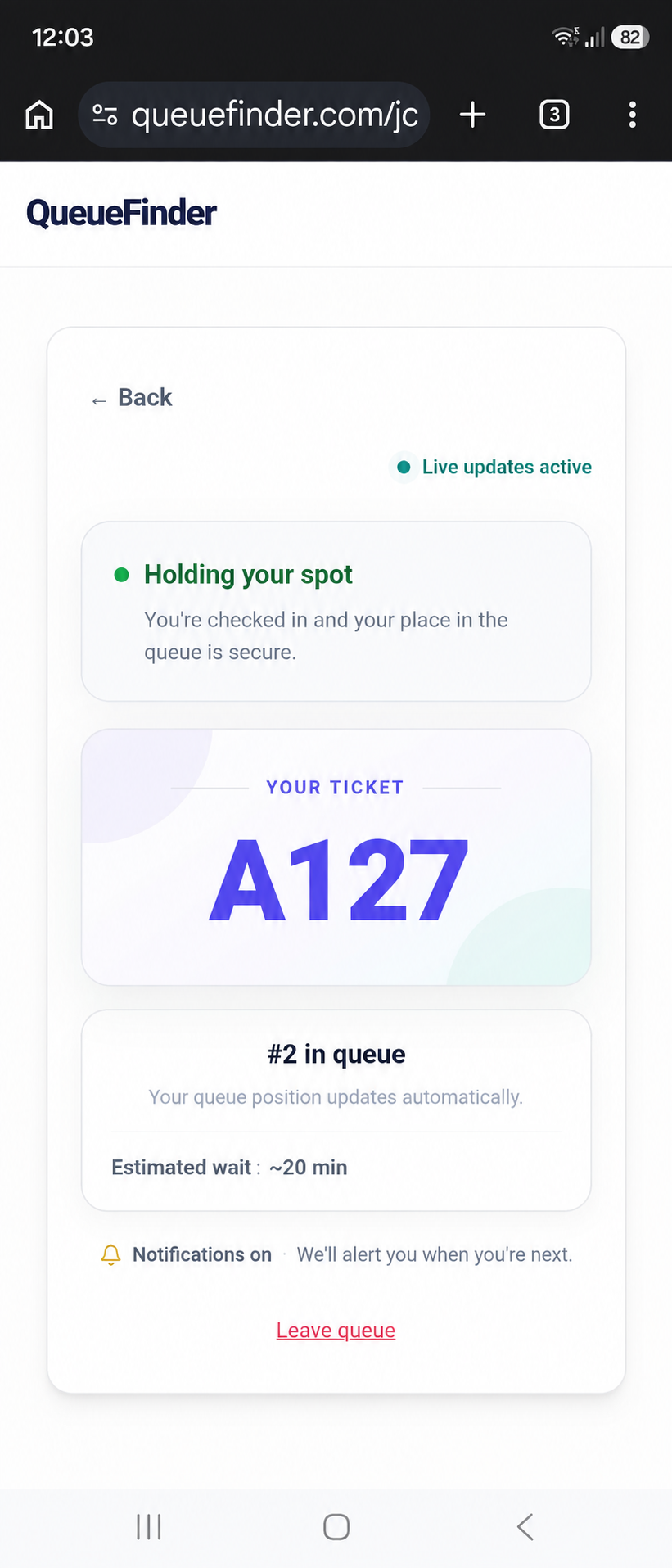
Your ticket shows your progress and any position or estimated wait the business shares.
Illustrative journey using demo data · Ticket numbers aligned to A127.Missed your turn?
Call or walk back to the venue and ask staff. They can put you back at the end of the line if the queue still has room. Your old spot won't be held.
Recover your ticket
Closed the tab? Go back to the same browser and the same business — your ticket should still be there. If you saved the ticket link, you can reopen it from there. Don't share that link with anyone.
Lost access? Ask the venue for help with your place. Do not assume creating another ticket restores the old one.
Notification problems
Not getting pings? Make sure you tapped "Enable Notifications" and allowed the browser request. If you still don't get one, check your phone's Do Not Disturb mode, or listen for your number at the venue.
Android and Chrome
Chrome says Possible spam? If you are expecting updates for your QueueFinder ticket, choose Show notifications and check the revealed alerts. For those expected updates, choose Always allow if offered. This applies to that website; it does not turn off Chrome’s protection for other sites. You can unsubscribe if you no longer want alerts. Report notifications that are unwanted or suspicious.
Alerts arrive without sound? Press and hold a QueueFinder notification and open its settings. Check that it is set to Alerting or allows sound, with a notification sound selected. Also check notification volume, Do Not Disturb and, if your phone offers it, Notification cooldown, which can quiet alerts arriving close together. Settings vary by phone.
iPhone and iPad
Web-push alerts require iOS or iPadOS 16.4 or later and QueueFinder opened as a Home Screen web app. A regular browser tab alone does not provide this Home Screen notification setup.
- Open your current ticket in Safari. Keep the ticket link safe - don't share it with anyone.
- Choose Share → Add to Home Screen. If Open as Web App is offered, leave it on, then choose Add.
- Open QueueFinder from the new Home Screen icon. Check that it shows your existing ticket before choosing Enable Notifications (or Enable alerts), then choose Allow.
Ticket missing after adding it? If your ticket isn't showing after adding to Home Screen, go back to your original browser tab. Don't join the queue again just to turn on alerts.
Still quiet or delayed? Check:
- Settings → Notifications → QueueFinder
- Lock-screen alerts and sound
- Focus / Do Not Disturb
- Scheduled Summary
If your ping doesn't come through, your ticket is the backup. Keep it open, stay within the venue's recommended return time, and ask staff if you need help. Entering a phone number does not enable SMS alerts. Some businesses use it to call you when it's your turn.
Need help with something else?
Contact QueueFinder for product support, or the venue for questions about your service, order or collection.